What Google Search Console Is and How to Use Every Report in It

Google Search Console is the free measurement tool that shows how Google sees your site, which pages are indexed, where ranking problems live, and what to fix first. It is not required to show up in Google Search, but it is the fastest way to find out why a page stopped ranking, why a new page never indexed, or whether a structured data error is quietly costing rich results.
What Google Search Console Does
Google Search Console (GSC) is a free Google product that reports on how a site performs in Google Search and surfaces technical SEO data for it. Inside GSC you can review search performance metrics such as clicks, impressions, average position, and average click-through rate, plus Core Web Vitals, the user-experience signals Google uses as ranking factors. With those data points in hand you can diagnose why a page dropped, why another is underperforming, and which fixes are worth the time.
Across one property GSC lets you review search performance, confirm which pages Google can crawl and index, submit sitemaps and individual URLs, identify technical SEO issues, and check structured data and Core Web Vitals. The rest of this guide walks through setup, access management, sitemap submission, and how to read every main report in the tool.
How to Set Up Google Search Console
Sign in to Search Console with a Google account, then add a property, the website you want to monitor. GSC offers two property types, and the choice changes what data you see.
Domain property vs. URL prefix property
A domain property gives the broadest possible view of a site because it includes all protocols, subdomains, and paths under the root domain. A URL prefix property isolates a specific section, like a blog subfolder, and is useful when you want reporting limited to one part of the site. Pick the type based on what you actually need to monitor.
Add a domain property
Adding a domain property requires verification through DNS. This proves you control the domain and lets Google combine data for the whole site.
- In property setup, choose Domain and enter the root domain without http, https, or www. For https://www.yoursite.com, enter
yoursite.com. - Click Continue and copy the TXT record GSC provides.
- In your domain registrar, open DNS settings. In GoDaddy, click the nine dots beside My Products in the navigation bar and pick Domains, open the Domain Portfolio, click the three dots beside the domain and choose Edit DNS.
- In the DNS Management window, click Add New Record in the DNS Records section, then create a TXT record with Type: TXT, Host/Name: @, the pasted TXT record as the Value, and TTL set to Default or 1 hour.
- Save the record and return to GSC.
- Click Verify.
DNS changes can take anywhere from a few minutes to 48 hours to update. If verification fails, wait at least an hour and retry from the GSC dashboard. Once verified, GSC begins collecting data for the property.
Add a URL prefix property
A URL prefix property is the right choice when you want reporting for one section of a site, like https://www.yoursite.com/blog/. Enter the full URL including protocol and path and click Continue.
GSC supports several verification methods for URL prefix properties: HTML file (recommended), HTML tag, Google Analytics, Google Tag Manager, and domain name provider. With the HTML file method, download the file GSC provides and upload it to the root directory for the URL prefix. For a blog subfolder, the root is /blog/. Return to GSC and click Verify. If verification fails, GSC will keep retrying automatically; check back later. If verification issues persist, Google’s official Search Console verification documentation walks through each method.
Owners, Users, and Permissions
Permissions define who can do what inside a property in GSC.
- Owners have full control and can view all data, configure settings, use every tool, and manage other users. There are two types of owners, both with the same permissions: a verified owner who verified ownership of the property, and a delegated owner granted access by another verified owner.
- Full users can view all data and take most actions.
- Restricted users can view most data but with limited actions.
- Associates can’t access GSC directly but can perform specific tasks tied to the association.
How to add a user and grant permissions
From a property, go to Settings, then Users and permissions. Click Add User, enter the email address, pick an access level, and click Add. The new user can then access the property at the selected permission level.
How to Add a Sitemap
A sitemap is a file that lists the pages you want Google to find. To submit one, go to Sitemaps in GSC, enter the XML sitemap URL, and click Submit. Once processed, GSC shows a status that confirms whether the sitemap was accepted or contains errors.
To confirm the sitemap itself is healthy, run a crawl-based audit of the site with a dedicated SEO checker such as Semrush Site Audit, open the Issues tab, and search for sitemap to surface any errors or warnings.
What You Can Do With Google Search Console Data
GSC data answers four broad questions: how the site performs in Google Search, which pages are indexed, where technical or experience issues hurt visibility, and what to fix first.
Check Site Performance
The Performance report is where GSC reports how the site shows up in Google web search and how users interact with those results. Note that the Performance report does not break out metrics for AI Overviews or AI Mode separately. Google has begun rolling out a Search Generative AI Performance report for select users in GSC, a beta feature that surfaces metrics specific to Google’s generative AI experiences.
Open the report by clicking Search results in the left-hand navigation. The report tracks four metrics:
- Total clicks: how many times users clicked the site’s results.
- Total impressions: how often the results were displayed.
- Average click-through rate (CTR): the share of impressions that produced a click.
- Average position: the site’s average ranking across all appearances.
Under the chart, a breakdown table shows performance by queries, pages, countries, and devices, plus trend lines for spotting visibility changes over time.
What to look for in the Performance report
- Low CTR: strong rankings with weak CTR often respond to clearer title tags and meta descriptions. CTR can also be lower when AI Overviews are present on the results page.
- Missing keywords: queries that should appear but don’t are signals that visibility opportunities are being missed.
- High position with low impressions or clicks: an AI Overview sitting above the result can soak up attention the page would otherwise get.
If the site appears in Google Discover or Google News, those surfaces get their own reports inside the Performance section.
Find striking-distance keywords
Striking-distance keywords are queries ranking roughly positions 4 through 15. Filter the Performance report’s queries by average position and sort by those closest to the top. They are the fastest ranking wins because the page already ranks, so the work is moving it closer to position one.
Before investing effort, confirm each shortlisted keyword’s difficulty and intent in Semrush’s Keyword Overview. A position-eight keyword with high difficulty and clear commercial intent is worth a dedicated push; one with low volume or unclear intent usually isn’t. For keywords worth pursuing, the tactics that most reliably move a page from striking distance to page one are expanding thin sections, adding subtopics competitors already cover, adding internal links from higher-authority pages, and refreshing outdated on-page elements.
Inspect URLs to Check Indexing and Diagnose Issues
The URL Inspection tool checks whether a specific page is indexed and diagnoses problems that may keep it out of search results. Open it from URL inspection in the left-hand navigation, or by pasting a URL into the search bar at the top of any GSC page.
The tool reports key facts about the page:
- Index status: whether Google has indexed the page.
- Last crawl date: when Googlebot last fetched the URL.
- Structured data: whether structured data is present and free of errors.
Click Test Live URL in the top right to see how Googlebot views a live version of the page; from the results page, View Tested Page Screenshot shows how Google renders it. For a new page or a major update, paste the full URL into the inspect box and click Request Indexing to prompt an earlier recrawl. Requesting indexing is a prompt, not a guarantee: indexing is not guaranteed.
Check Indexed Pages
The Page indexing report shows which pages Google has indexed and which it has skipped, with the reasons why. Pages must be indexed to appear in search results, so coverage issues matter. Open it under Indexing, then Pages in the left-hand navigation.
The report separates URLs into indexed and non-indexed groups. A sudden drop in indexed pages is a signal something is wrong and needs investigation. Scroll into the reasons section: 404 (Not found) errors are common culprits. Click any row in the Reason column to see the affected URLs and an explanation. The page listing those URLs offers guidance on how to fix the problem at the top. After applying a fix, click Validate Fix to notify Google of the change and request re-indexing for the affected pages.
See if Google Can Read Your Sitemaps
The Sitemaps report surfaces blockers that stop Google from accessing a sitemap and shows how many URLs Google discovers from each one. Open it from Sitemaps in the left-hand sidebar.
For each submitted sitemap the report lists the URL, type (such as sitemap, sitemap index, and so on), when it was submitted, the last read date, processing status, discovered pages, and discovered videos.
The Status column is the report’s traffic light. Success means Google processed the file and can use it to discover the URLs inside. Discovery is not the same as indexing, so excluded pages still need to be reviewed in the Page indexing report.
Unsuccessful statuses and how to handle them:
- Has errors: Google detected issues in the sitemap. Review the listed errors and follow Google’s guidance to correct them.
- Couldn’t fetch: Google couldn’t access the sitemap. Run a live test from the URL Inspection tool to investigate.
Click any sitemap entry to open a detailed report, then See page indexing to confirm whether every URL in that sitemap is indexed.
Check if Pages Meet Core Web Vitals
Core Web Vitals (CWV) measure whether the site meets Google’s performance and usability benchmarks. CWV metrics are ranking factors, so meeting them can lift visibility inside the SERPs.
Google evaluates pages against three CWV metrics:
- Largest Contentful Paint (LCP): how quickly the main content loads.
- Interaction to Next Paint (INP): how responsive the page is to user interactions.
- Cumulative Layout Shift (CLS): how stable the layout is as the page loads.
FAQ
Do I need Google Search Console to rank in Google Search?
No. Sites can rank without GSC. GSC is a measurement and troubleshooting tool, not a ranking factor, so absence from GSC does not stop a site from being indexed, crawled, or ranked. Its value comes from showing why pages are or are not appearing, which would otherwise be invisible without manual checks and guesswork.
Should I add a domain property or a URL prefix property?
A domain property gives the broadest possible view because it covers all protocols, subdomains, and paths under the root. A URL prefix property isolates a single section, like a blog subfolder. Choose the domain property when you want a complete picture of the site, and the URL prefix property when reporting should stay limited to one specific area.
What is the difference between sitemap discovery and indexing?
Discovery means Google found the URLs listed in the sitemap. Indexing means Google has stored those URLs and can return them in search results. A URL can be discovered and still be excluded from indexing for reasons surfaced in the Page indexing report, such as 404s or other coverage issues.
Related coverage
- Google Search Console Links Report Not Updated In A Month – LocalSEOBot
- Google Search Console Indexing Report Missing June 2026 Data – LocalSEOBot
- Weekly Search News Recap: AI Local Results Slop, Google AI Home Page Buttons, and Meta Building a Search Engine – LocalSEOBot
SEOScanPro
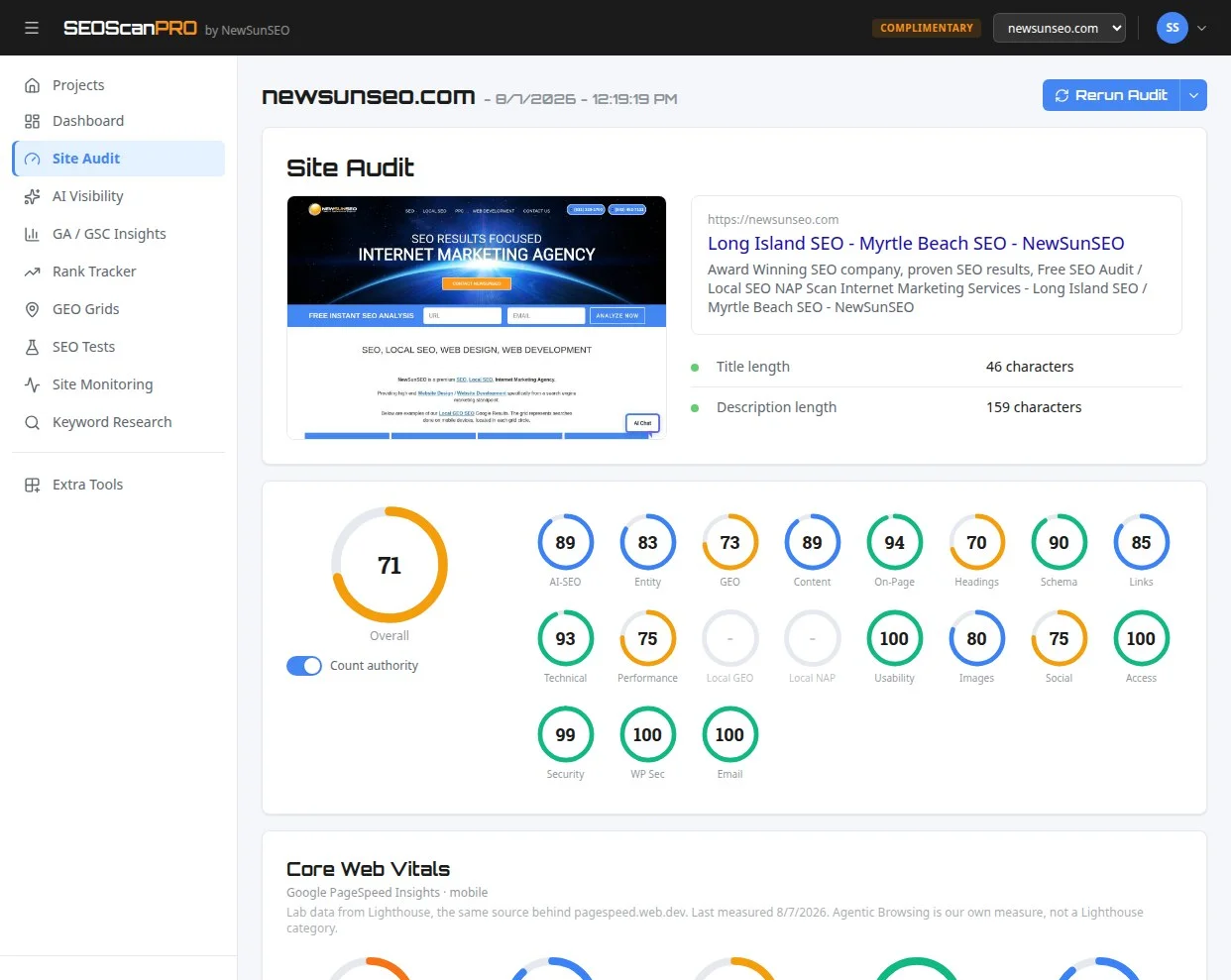
SEOScanPro’s site audit tool runs a full technical audit of a site and shows the measured result behind every check. Open the site audit tool.